
You have been using Hermes in the terminal for a while now. You know how skills, memory, and cron jobs work. You have built up a setup that saves you time every day. But there is one limitation to the terminal. You have to be sitting at it.
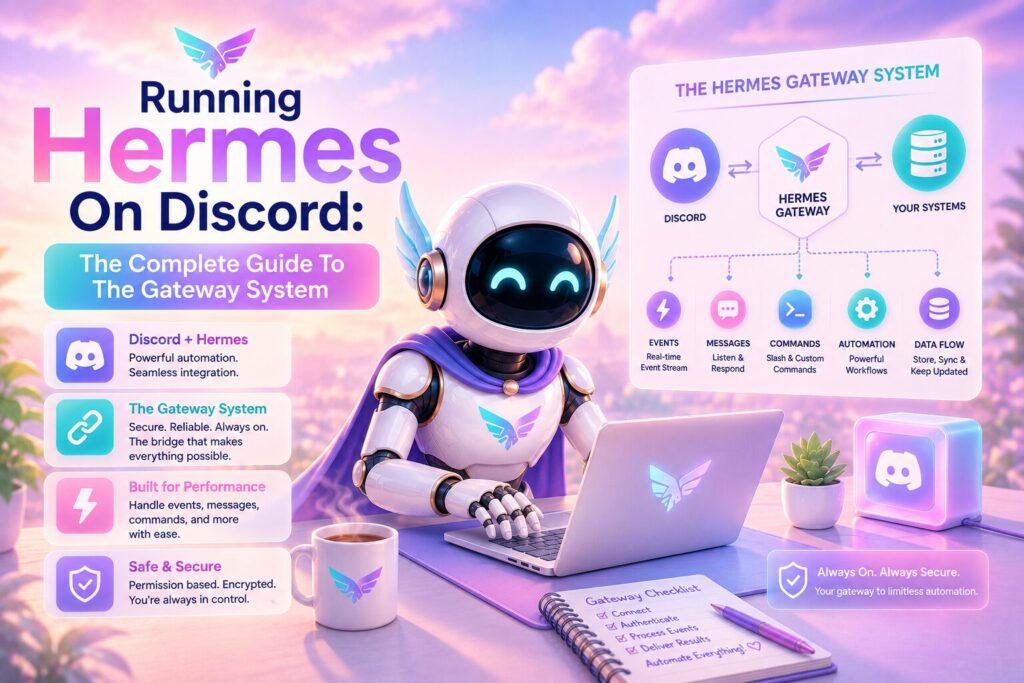
The Hermes Gateway changes that. It is a single background process that connects your agent to messaging platforms. The same Hermes you use from the command line, now available from Discord, Telegram, Slack, Signal, SMS, email, and a dozen other platforms. Same skills. Same memory. Same cron jobs. Different surface.
This article walks through setting up and using the Gateway with Discord, which is the most feature-rich platform Hermes supports. By the end, you will have your agent running in your server, ready to take commands from anywhere.
What The Gateway Actually Is
Architecturally, the Gateway is not complicated. It is a background process that runs alongside your normal Hermes sessions. Each messaging platform has a small adapter that listens for incoming messages. When a message arrives, the adapter routes it through a per-chat session store and dispatches it to the same AI agent that powers your terminal sessions.
The agent does not know or care whether you typed your message in a terminal or in a Discord DM. It processes the request the same way, using the same tools, the same memory, and the same skills. The response goes back through the adapter and appears in whatever platform you used.
The Gateway also runs the cron scheduler. Every 60 seconds it checks for due jobs and executes them. Those cron job results you configured earlier can be delivered straight to a Discord channel instead of piling up in your terminal scrollback.
Why Discord Specifically
Hermes supports over 20 messaging platforms. Every one of them does basic messaging. But Discord stands out because of everything else it supports on top of text.
Discord is the only platform (along with Matrix) that hits every feature in the Hermes gateway comparison table. Voice support for speaking to your agent and having it talk back. Image uploads and analysis. File attachments. Threaded conversations with full session context. Emoji reactions on messages. Typing indicators so you know when the agent is processing. Streaming message updates as responses are generated.
Most platforms miss one or more of those. Slack does not have voice. Telegram does not have reactions. SMS and email are text only. If you want the full Hermes experience outside the terminal, Discord is the place to get it.
Creating Your Discord Bot
Before Hermes can connect to Discord, you need a bot account. Here is exactly how to set one up.
Go to the Discord Developer Portal and click New Application. Give it a name. Something like “Hermes” or whatever you want your server to see. Go to the Bot tab on the left and click Add Bot. Confirm. You now have a bot user.
Under the Bot tab, find the Token section and click Copy. This is the secret key that lets Hermes authenticate as your bot. Treat it like a password. If it leaks, regenerate it immediately.
Scroll down to Privileged Gateway Intents. Enable MESSAGE CONTENT INTENT so Hermes can read messages in channels where it is mentioned. Enable SERVER MEMBERS INTENT if you want to restrict access to specific users by name. Without these intents, the bot will connect but miss most of what happens in your server.
Now you need to invite the bot to your server. Go to the OAuth2 tab, then URL Generator. Under Scopes, select “bot” and “applications.commands”. Under Bot Permissions, select Send Messages, Read Messages/View Channels, Attach Files, Read Message History, Connect, and Speak. Copy the generated URL, open it in your browser, and select the server you want to add the bot to.
Connecting Hermes To Discord
With the bot created and invited, it is time to connect Hermes. This takes two settings.
Open your Hermes .env file (usually ~/.hermes/.env) and add your Discord bot token:
DISCORD_BOT_TOKEN=MTIzNDU2Nzg5MDEyMzQ1Njc4OQ.GaBcDe.FaKeToKeNExAmPlE
Next, set who is allowed to talk to the bot. In your .env, add your Discord user ID:
DISCORD_ALLOWED_USERS=123456789012345678
You can find your Discord user ID by enabling Developer Mode in Discord settings, then right clicking your name and selecting Copy ID.
If you want to allow multiple people, separate the IDs with commas. If you want to allow anyone on your server to use the bot, you can use GATEWAY_ALLOW_ALL_USERS=true, but I do not recommend that for a bot with terminal access. Keep it locked down.
With those set, start the Gateway:
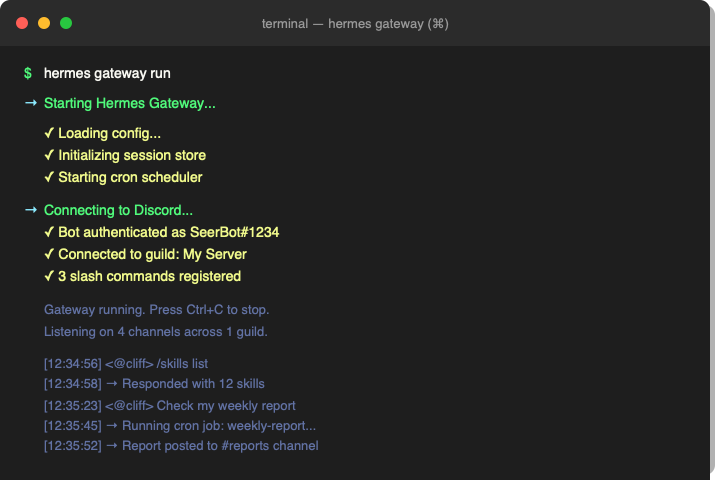
hermes gateway run
You should see the bot authenticate, connect to your server, and start listening. It will also register slash commands automatically so they appear in your Discord chat bar.
First Commands In Discord
Once the bot is online, DM it or mention it in a channel. Start with /help to see what is available. Try /new to start a fresh session. Then ask it something, anything, the same way you would in the terminal.
The agent responds with the same quality you get from the command line. It has full tool access, so it can search the web, run terminal commands, read files, and call your installed skills. The only difference is the interface.
Skills On Discord
Every skill you have saved in Hermes is available from Discord. You do not need to rebuild or reconfigure anything. Skills are loaded automatically based on context, and you can invoke them directly with /skill-name.
This is where the Gateway starts to feel powerful. The skill you created in the terminal for formatting weekly reports works the same way from a Discord message. The skill that helps you draft articles works from your phone. You build once and use from anywhere.
Voice Channels
Voice is the feature that surprises people the most. Hermes can join a Discord voice channel and talk to you.
Use /voice join while in a voice channel to bring the bot in. The agent can generate speech from its responses using TTS and can transcribe what you say through your microphone. It turns your Discord server into a voice controlled AI terminal.
This is useful in a lot of scenarios. Dictating tasks while you work. Having the bot read out cron job results while you are away from your screen. Brainstorming out loud and having the agent capture and organize your thoughts. It feels different from typing. More natural for certain kinds of work.
Threads And Session Context
Discord threads map naturally to Hermes sessions. Each thread is an independent conversation with its own context. You can have multiple threads going simultaneously with the same bot, each maintaining its own history and state.
If you ask the bot about a project in one thread, then ask it something completely different in another thread, it keeps the contexts separate. No cross contamination. When a thread goes idle for a configurable period (60 minutes by default for Discord), the session resets and the next message starts fresh.
Security
The Gateway defaults to deny all. That means no one can talk to your Hermes bot until you explicitly allow them. This is the safe default for a bot that has terminal access and can run commands on your machine.
When a user is not in the allowlist and tries to message the bot, nothing happens. The bot ignores the message entirely. No error message, no hint that a bot even exists there. If you want to allow someone, add their Discord user ID to the allowed users list and restart the Gateway.
For dangerous commands like file edits or destructive terminal operations, the same /approve and /deny flow works in Discord that you use in the terminal. The bot will ask for confirmation before doing anything risky. You have to explicitly approve it before the action executes.
Real World Workflows
Here is what using Hermes on Discord looks like day to day.
You wake up and check your Discord server. The cron job that runs at 8 AM has already posted the daily summary to your reports channel. Your weekly report draft is waiting. You ask for a quick edit in a thread, approve it, and the updated version posts back to the channel.
Midday, you get a notification on your phone. Someone in your team Slack forwarded a question about a tool you reviewed. You are not at your desk, but you are on your phone. You open Discord, DM the bot, ask it to pull up the relevant article details and draft a response. It does. You paste it back to the team.
In the evening, you jump into a voice channel with the bot. You talk through a problem you are having with a project. The bot captures notes, suggests solutions, and posts a summary to your private channel when you leave the voice channel.
None of this requires you to open a terminal. The Gateway just runs in the background and the bot is always there.
Troubleshooting
A few things can go wrong when setting up the Gateway. Here are the most common issues and how to fix them.
Bot does not show online. Check your token. Copy it again from the Discord Developer Portal and make sure there are no extra spaces or quotes in your .env file. Run hermes logs to see if there are authentication errors.
Bot connects but ignores messages. You forgot to enable MESSAGE CONTENT INTENT in the Developer Portal. Go back to the Bot tab, enable it, and restart the Gateway.
Bot sees messages but does not respond. Check your allowed users list. If your Discord user ID is not in the list, the bot will not reply. Make sure there are no typos in the ID.
Slash commands do not appear. The bot needs the applications.commands scope when you invite it. Reinvite the bot using the URL generator with that scope selected. It can take a few minutes for slash commands to register after the bot joins.
When in doubt, run hermes doctor and hermes logs. These two commands will tell you most of what you need to know.
Why One Agent Across All Platforms Matters
The Gateway is not about replacing the terminal. It is about making Hermes available where you already are. Your skills, memory, and cron jobs follow you regardless of whether you message the agent from the command line, a Discord DM, a Telegram group, or an SMS text.
You build once. You use everywhere. Skills you create in the terminal are available in Discord. Memory you save from Discord is loaded in the terminal next session. Cron job results can go to any platform you choose. The Gateway is what makes Hermes feel less like a CLI tool and more like an actual assistant that is always within reach.
The previous article in this series covered how to keep your Hermes setup safe with backup, checkpoints, and recovery. If you plan to run the Gateway, making a backup first is a good habit. That article covers all five safety features and when to use them.
Part Of The Hermes Agent Series
This article is one piece of a bigger story. Read the whole series in order and get the complete picture of what Hermes Agent can do.