

If you have been using Hermes for a while, you know the default look gets stale. Same dark background. Same accent color. Same everything, day after day. Theming is possible, but the built in options are limited and hand writing skins means getting the contrast right yourself. I wanted more choices without the guesswork. So I built a theme pack.
I was heavily inspired by BChop as he made a Hermes Skin Pack for the CLI/TUI version of Hermes Agent. His includes 50 themes with a range skins in various categories similar to what I went with. You can find his build via the link below.
This article covers what I made, how the color generator works, and what it is like to have 24 polished themes one click away in the desktop app.
What The Pack Includes
The repo ships 24 curated themes across 6 categories. Dark themes like aubergine, obsidian, and charcoal. Light themes like paper, frost, and lavender. Vibrant picks like synthwave, neon, and sunset. Nature palettes, minimal options, and a set of retro terminal styles that look like they came off an old CRT.
Every one of them is generated from a seed palette by a script, which means every theme follows the same rules. Consistent structure. Consistent contrast. No thrown together color jobs that look broken the moment you switch to them.
Why Contrast Checking Matters
Here is the thing most theme makers skip. A palette can look great in a preview and fail completely in real use. Text that blends into the background. Accents that are unreadable. Status colors that all look the same.
The generator enforces WCAG AA contrast on every theme. Primary text holds at a 6 to 1 ratio against the background. Secondary text and accents hold at 4.5 to 1. Success, warning, and error colors stay recognizable as green, amber, and red. It also uses only hex colors, so everything renders the same across the CLI, the TUI, and the desktop app.
That last part matters more than it sounds. A Hermes skin themes every surface at once. The same theme file drives the terminal interface, the desktop app, and everything in between. If the colors are broken in one place, they are broken everywhere. The generator removes that risk before you ever apply a theme.
How The Generator Works
The whole pack is driven by one script. At the top is a list of seed palettes. Each seed is just a handful of colors that capture the vibe of the theme. Dark aubergine starts with a deep purple base. Retro amber starts with a warm orange glow. The generator takes that seed and derives the full color set from it.
Background. Text hierarchy. Accent colors. Borders. Status colors. Diff colors. Syntax highlighting. The completion menu. Everything a skin needs, derived from the seed and validated against the contrast gate.
If I want a new theme, I add a seed palette to the list and run the script. It regenerates all the theme files and the preview gallery in one pass. The invariant tests run against the output and fail the build if any theme breaks the contrast rules. That is the kind of automation that makes maintaining 24 themes actually sustainable.
The Desktop Theme Switcher
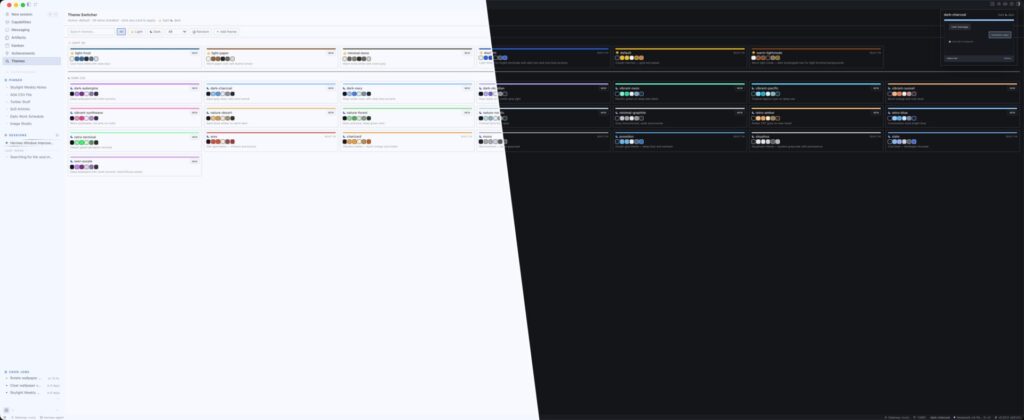
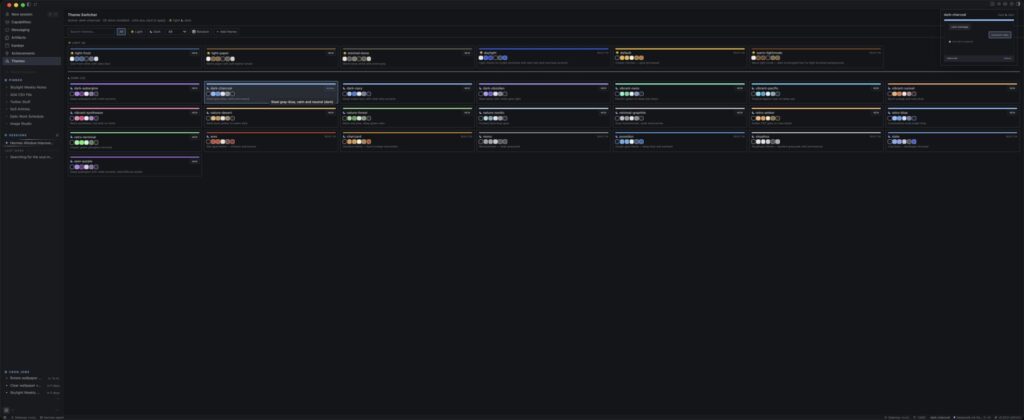
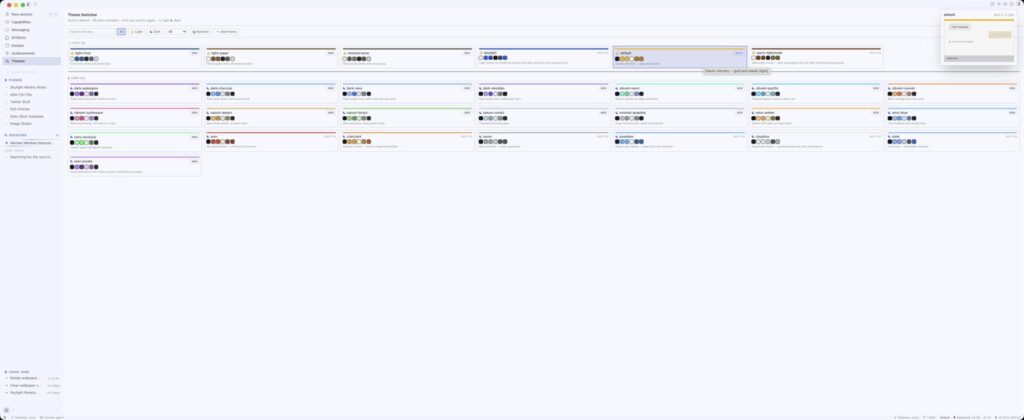
The pack includes more than just colors. It ships a desktop plugin that adds a Themes page to the Hermes desktop app. Open the sidebar, click Themes, and every installed skin shows up in a grid.
Each card displays the real palette. Accent line, name, swatches, description. Light themes get a sun marker. Dark themes get a moon marker. They are sorted into light and dark groups so the first decision is the simple one. Do you want a light theme or a dark theme?
From there you can search, filter by category, or just browse. Hover over a card and a mockup of the app renders in that theme’s actual colors before you commit. Click apply and every surface repaints live within about a second.
There is an undo button that snaps you back to the previous theme if you change your mind. A random button for when you feel adventurous. And a status bar chip that shows the active theme with its color dot. You never have to touch the terminal to switch.
Adding Your Own Themes
The pack works with any skin, not just the ones I made. Three ways to add yours.
Paste a skin YAML into the Themes page and it installs instantly. The backend validates the shape and rejects bad YAML, duplicates, and unsafe names. Drop a YAML file into your skins folder and it appears everywhere. Or add a seed palette to the generator and let it build the full theme for you.
For hand written skins, the contrast rules still apply. Keep primary text at 6 to 1 and accents at 4.5 to 1 against the background. The generator does that automatically, but if you go manual, it is your job.
Why I Built It
This started as a personal annoyance. I wanted my Hermes to look the way I wanted, and the process of hand writing skins and getting contrast right was tedious. I could have made one theme for myself and stopped. Instead I made 24 and packaged them with a plugin that makes switching painless.
Partly it is because the tooling makes it easy. Once the generator was in place, each new theme was a seed palette and a script run. Partly it is because I think good looking tools get used more. A terminal that feels like yours, with colors you actually like, is a terminal you want to open.
The whole thing is on GitHub under an MIT license. If you use Hermes and want your desktop app to look the way you want, grab the pack, flip through the themes, and make one of your own if you are feeling ambitious.
Part Of The Hermes Agent Series
This article is one piece of a bigger story. Read the whole series in order and get the complete picture of what Hermes Agent can do.